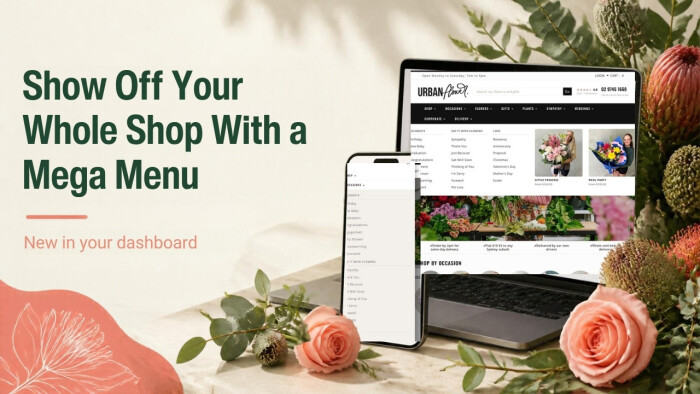
Your website's menu just got a big upgrade.
You can now turn your drop down menus into a mega menu: a wide panel that opens from your menu bar with your links laid out in columns, a feature picture, your best products with photos and prices, and a short message from you.
It's the kind of menu you see on the big flower brands' websites. Now your shop can have one too, and you set it all up yourself from your dashboard in a few minutes.
Why a mega menu helps you sell more flowers
A normal drop down menu is a long, narrow list. If you have a lot of occasions, flower types and gift ranges, your customer has to scroll through it, squint, and guess. Many don't bother.
A mega menu fixes that.
- Customers see your whole range at a glance. Occasions in one column, flowers in another, gifts in a third. No hunting, no long scroll.
- Your best sellers get seen before anyone clicks. Put up to six products right in the menu, with their pictures and prices. Someone opening "Occasions" to find a category might see the perfect bunch straight away.
- You can promote what matters right now. Mother's Day, Valentine's Day, sympathy flowers, a new range. Add a big feature picture that links straight to it.
- You can reassure people as they shop. A small text card can say "Same day delivery across Melbourne if you order by 1pm" or "We can help with the card message". Your promise is right there while they browse.
- Your shop looks bigger and more professional. First impressions count, especially against the order gatherers. A clean, picture-rich menu says "this is a serious florist".
What you can put in a mega menu
Each drop down group in your menu can have its own mega menu. For each one you can choose:
- Columns. Split your links into 2, 3 or 4 columns.
- Column headings. Give each column a heading, like Occasions, Flowers and Gifts.
- A picture. Upload a picture, or pick one of your product photos.
- Where the picture links to. A product, a category, one of your pages, or any web address.
- A caption. A short line of text under the picture.
- Products with pictures. Search for and pick up to six products. Each shows its photo, name and price.
- A text block. A heading and a few lines of text, for a delivery promise, an offer, or a helpful note.
It works with all your menu groups, including the ones that fill themselves automatically, like your occasions and flower lists. Those are split into neat, even columns for you.
See it in action
Some of our biggest customers are already using mega menus across their whole website. Here are a few of the ways one of them has set them up.
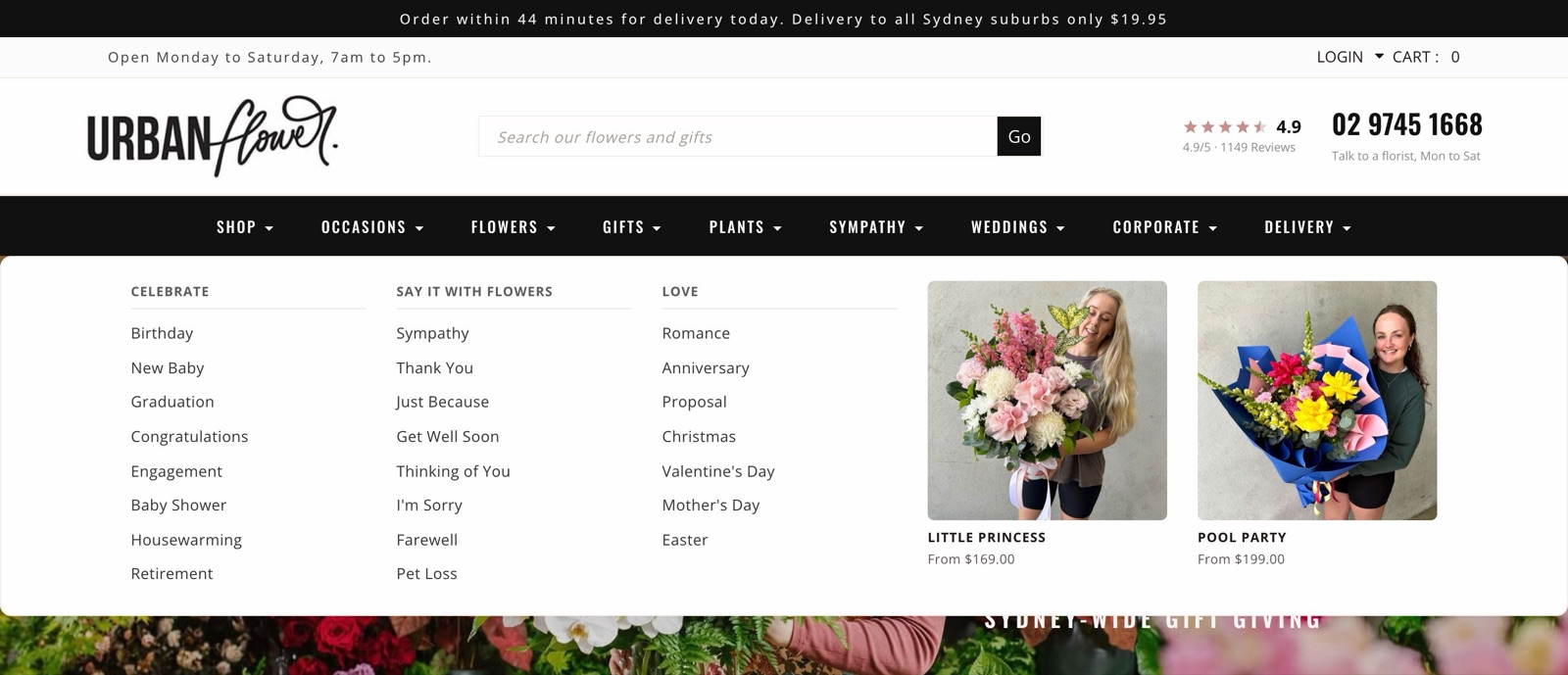
Occasions: three columns and two best sellers. Their occasions are split into Celebrate, Say It With Flowers and Love, so a customer finds Birthday, Get Well Soon or Anniversary in a second. Next to the links sit two of their best sellers, Little Princess and Pool Party, with photos and prices. (That's the first screenshot in this post.)
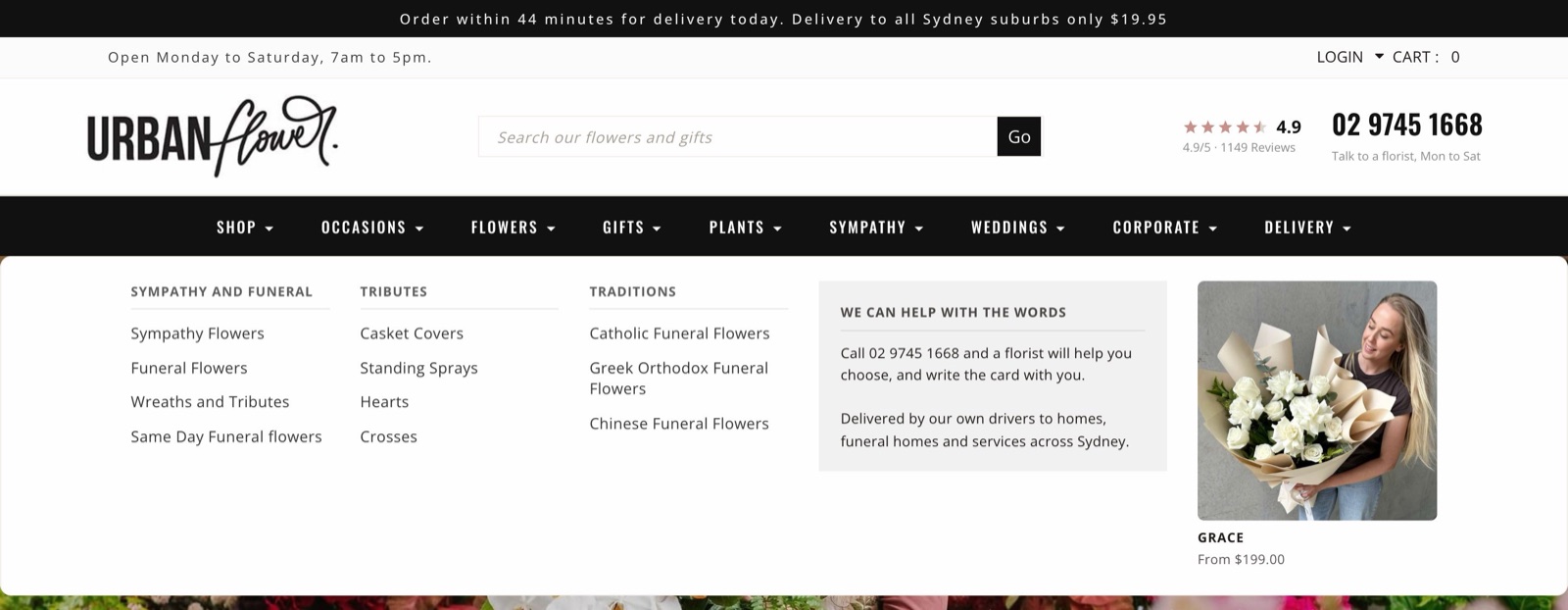
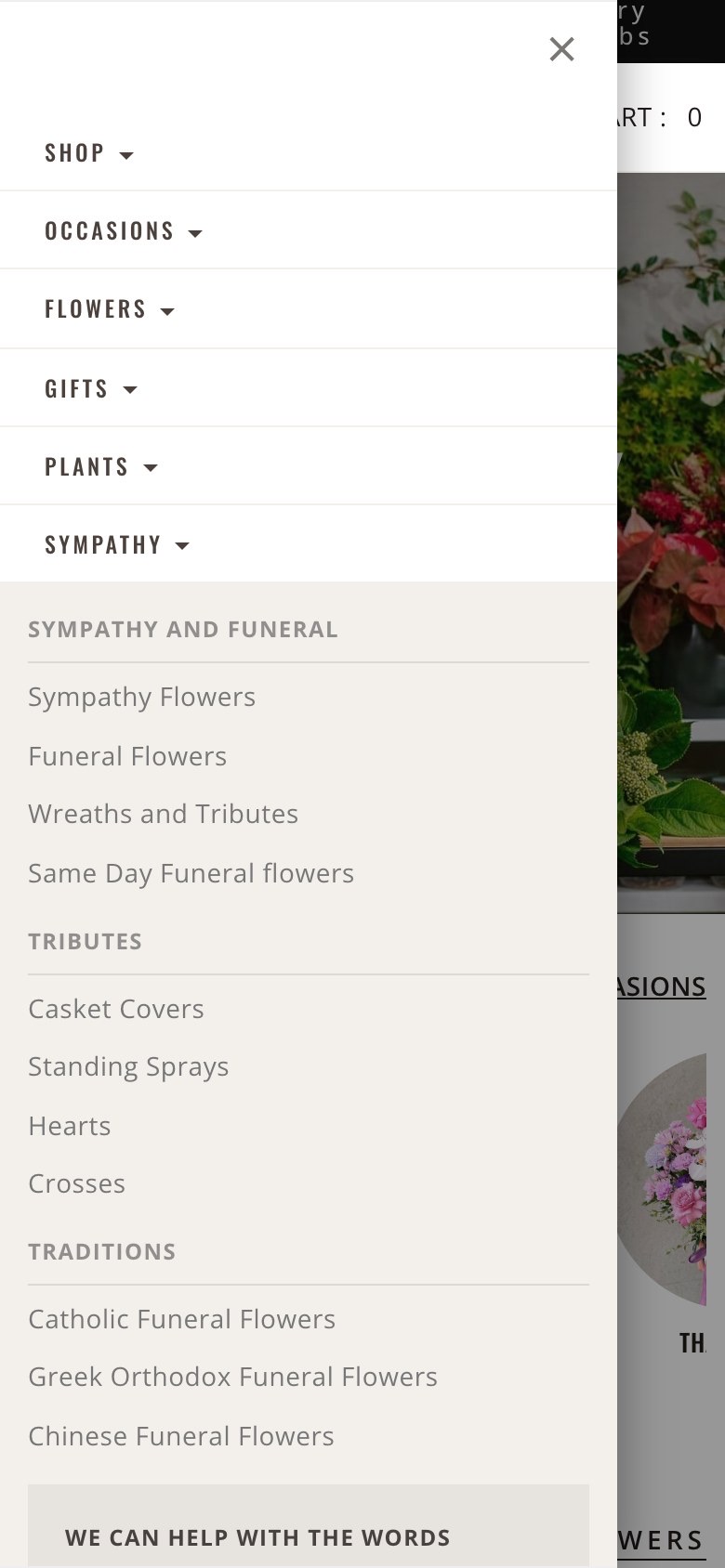
Sympathy: links, a kind word and one beautiful bouquet. Three columns cover sympathy and funeral flowers, tributes like casket covers and wreaths, and cultural traditions. Then a text card says "We can help with the words": call the shop and a florist will help choose the flowers and write the card. A hard moment, handled with care, right in the menu.
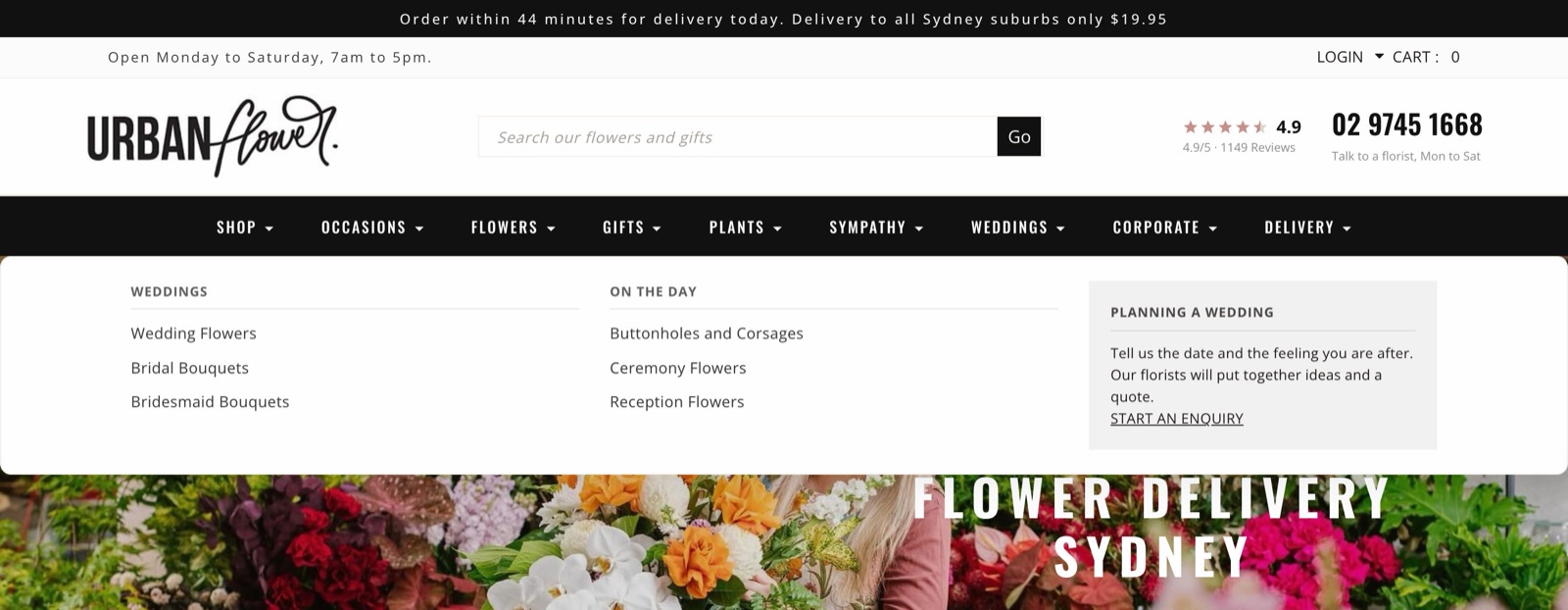
Weddings: no products, just a nudge to enquire. Wedding flowers are custom, so instead of products the text card invites couples to share their date and the feeling they're after, with a link to start an enquiry.
Delivery: the promise, front and centre. Delivery options and every region they cover sit in three columns, with a card beside them spelling out the deal: Monday to Saturday, a flat $19.95, their own drivers, and a photo by text before it leaves.
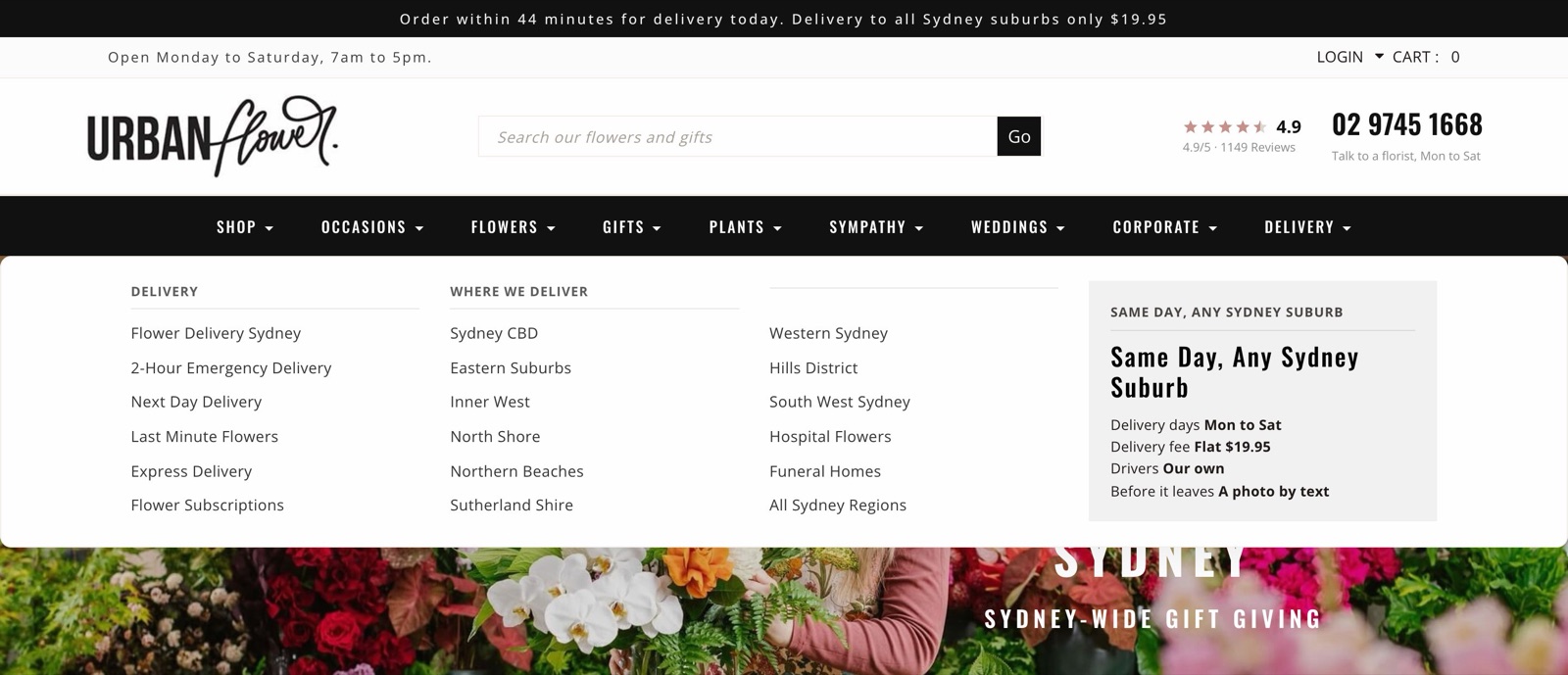
Same tool, four different jobs. Use whatever suits each part of your shop.
It's your choice, and nothing changes until you switch it on
The mega menu is off until you turn it on. Your current menu stays exactly as it is, with every item and the order you've set, until you decide to switch.
If you try it and prefer the old style, one click puts it back.
It works on phones too
Most flower orders are placed on a phone. On a small screen, your mega menu tidies itself up: the columns stack neatly one under the other and the large picture is hidden, so your menu stays quick and easy to tap through. Each column heading sits over its own links, so the menu still makes sense at a glance.
How to set up your mega menu
1. Open your menu settings. In your dashboard, go to Design and click Navigation at the top of the screen.
2. Switch on the mega menu. Next to Menu style, click Mega.
3. Set the width and how it opens. Click Mega menu options.
- How wide: choose a width that matches your website, or Full width to spread the menu right across the page.
- Open on hover: turn this on if you'd like the menu to open when customers move their mouse over it. Leave it off and they click to open it. On phones, customers always tap.
4. Edit a drop down group. Click the edit button on a group, such as Occasions. In the Mega menu section, choose your columns and column headings, then add a picture, a caption, products and a text block if you'd like them. They're all optional, so start simple.
5. Start new columns where you want them (optional). For a group you've built by hand, edit the item you want at the top of a new column and tick Starts a new column, with this label as the column heading.
6. Save, then check your website. Open your site on your computer and on your phone and try the menu. Adjust anything you'd like and save again.
A few handy tips
- Keep it tidy. Three columns, one picture and a short text card is usually plenty. A mega menu works best when it's easy to scan.
- Use a wide picture that looks good small. Around 600 pixels wide works well. A strong, simple flower photo beats a busy one.
- Change your feature picture for each season. Swap it for Mother's Day, Valentine's Day and Christmas, and link it straight to that range.
- Changed a price? The products in your mega menu show the price from when you last saved the menu. If you change a product's price, open the menu group and save it again so the menu shows the new price.
Need a hand?
If you'd like help setting up your mega menu, or something doesn't look right, create a support request in your dashboard or email support@enflexion.com.au and the team will help you out.
We'd love to see what you do with it.