A Tour of Your New Dashboard
A guided video tour of the new Flower Store In a Box dashboard: the Today screen, Point of Sale, the calendar and every button along the top.
Read more

Last week we launched the brand new dashboard and Point of Sale. This post is the guided tour. We start on the Today screen, the first thing you see when you log in, and walk through every button along the top. Then we look at what Today tells you about your day, your calendar and the jobs waiting on you.
Prefer to watch? Here's the full tour as a video, so you can follow along on screen.
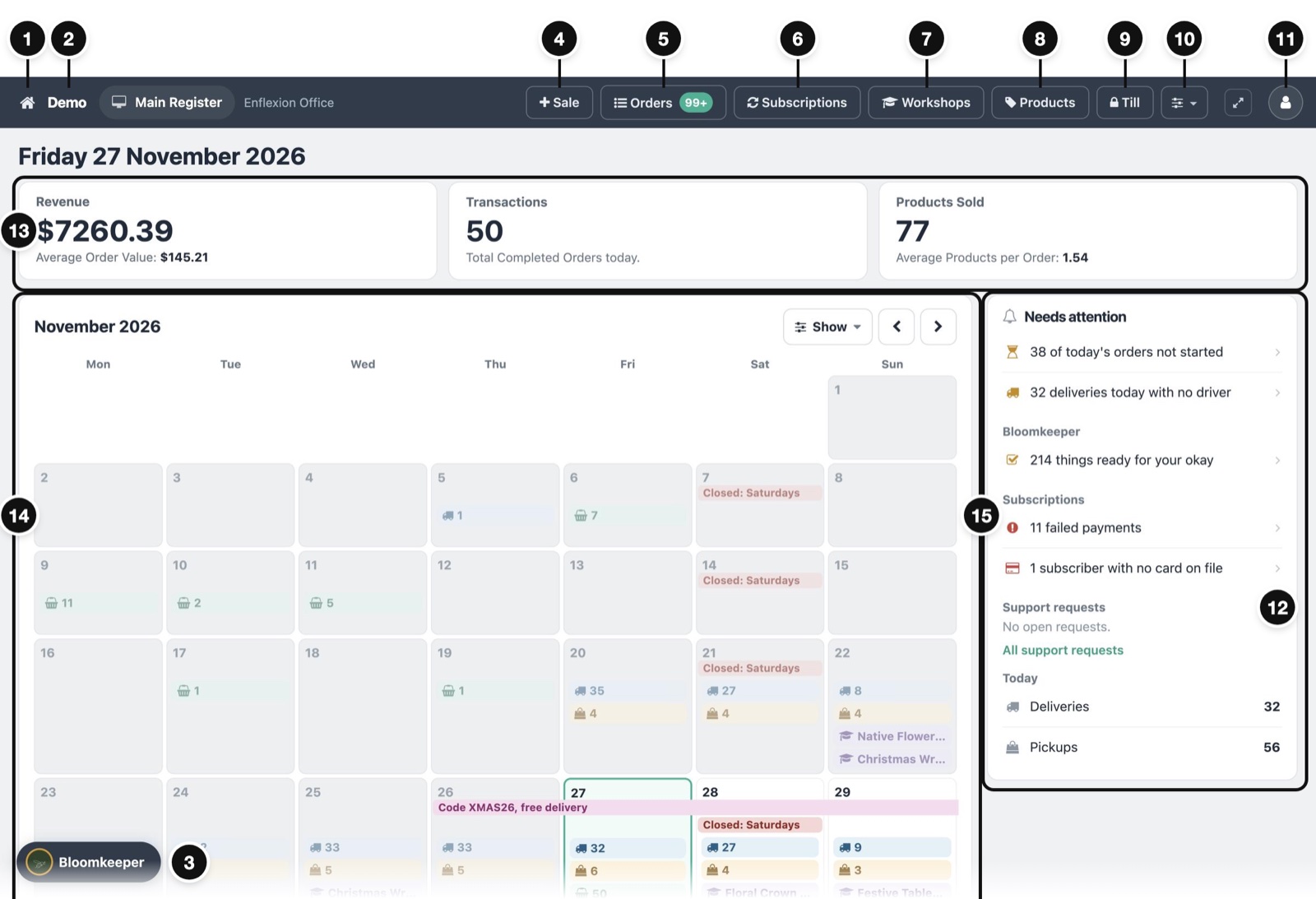
The Today screen. Each number is explained below.
The little house in the top left opens your website, just as a customer sees it. Handy after you change a product or a banner and want to check it.
Wherever you are in the dashboard, tap your shop name to come back to Today. Think of it as your home base.
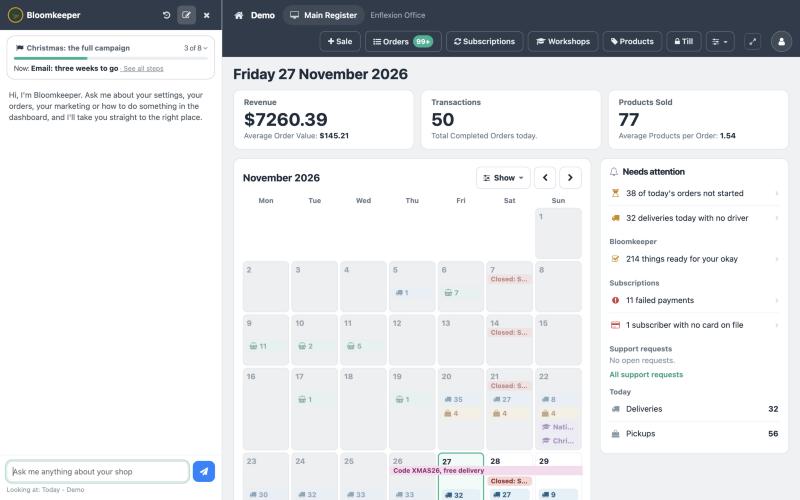
Bloomkeeper slides in from the left. It knows your orders, your settings, your products and your customers. Ask it a question in plain English and it answers, takes you to the right screen, or does the job for you. "Close us on Boxing Day." "Find Sarah's order from last week." "Set up our Christmas campaign." It also walks you through the big seasonal jobs step by step, like the Christmas guide you can see at the top.
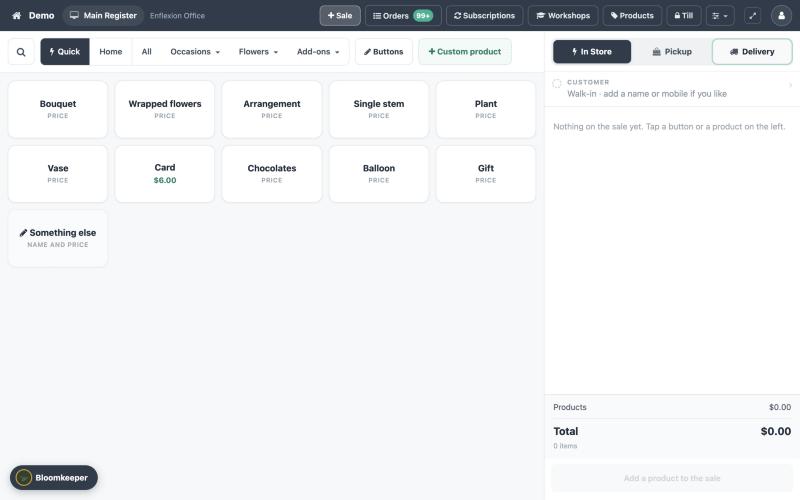
One screen for every sale you take yourself, whether the customer is standing at the bench or on the phone. On the left, tap a quick button like Bouquet or Wrapped flowers and type the price, or pick a product from your website by category. On the right, choose what happens to the flowers: In Store, Pickup or Delivery.
You can switch between the three at any time and the products stay on the sale. So if a walk in customer decides they'd rather have it delivered, just tap Delivery and carry on. Everything saves as you go, so nothing is lost if the phone rings.
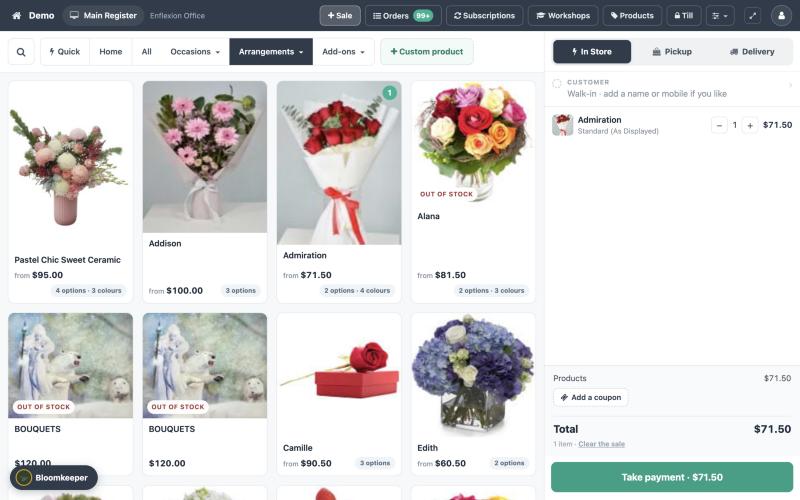
For the customer in front of you who walks out with their flowers. Add the products and tap Take payment. That's it. No address, no date, and the customer is optional: add a name or mobile if you'd like them in your customer list, or leave it as a walk in.
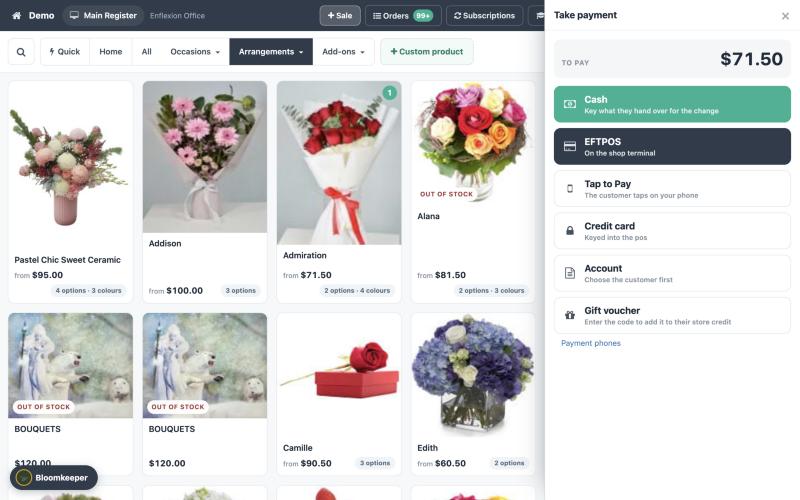
Take payment: cash (it works out the change), EFTPOS on your shop terminal, a credit card keyed in, an account customer, or a gift voucher. Tap to Pay on your phone is coming soon.
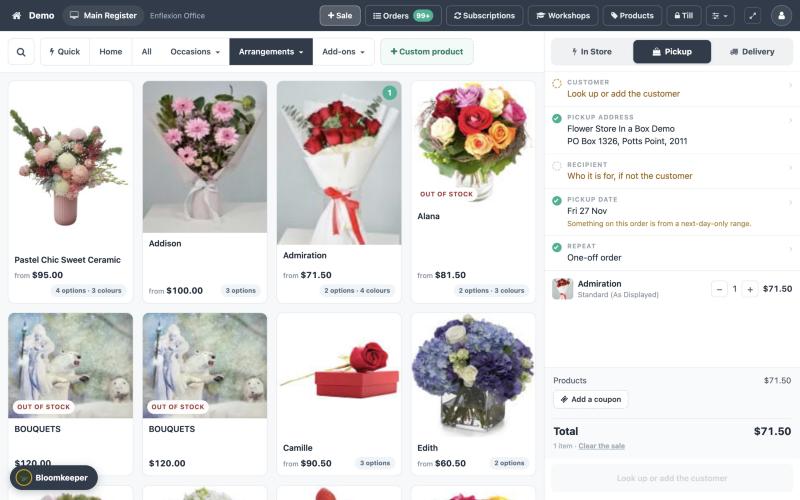
For an order made up now and collected later, like a phone order picked up after work. The screen asks for a little more:
Each line shows a tick once it's done, and the button at the bottom tells you what's still needed before you can take payment. The order then lands on your Orders board as an in store pickup, ready to be made.
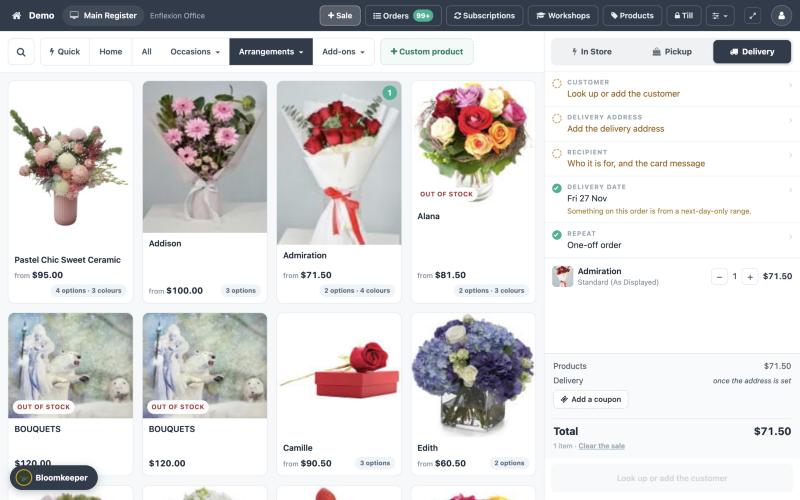
The full phone order. Delivery asks for everything Pickup does, plus where it's going:
Once it's paid, it goes to your Orders board just like a website order, ready to allocate to a florist and a driver.
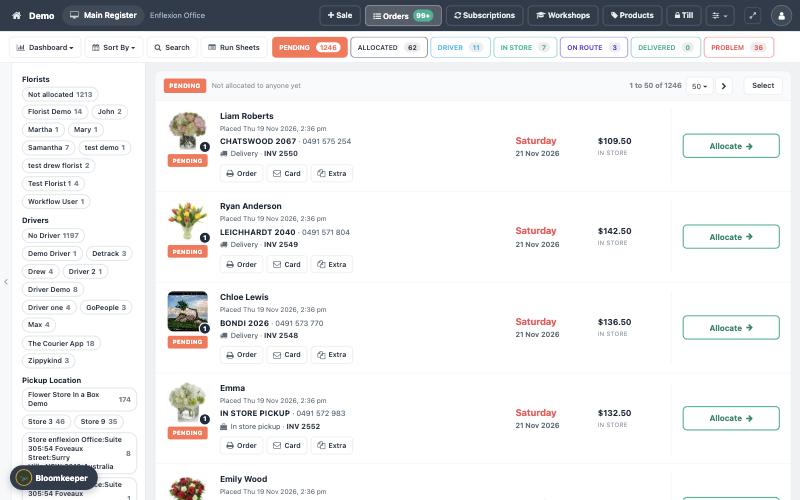
Every order, whether it came from your website or from the Sale screen, lands here. The tabs along the top show where each order is up to: Pending, Allocated, Driver, In Store, On Route, Delivered and Problem. Filter by florist, driver or pickup location on the left. Print the order, the card and run sheets, and move each order on with one button.
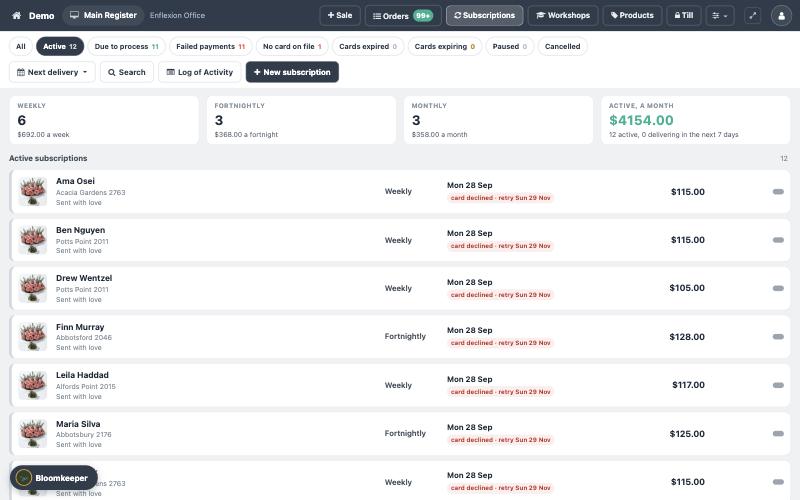
See every flower subscription, what it brings in each month, and when each one is next due. Filters at the top show you failed payments, cards about to expire and anyone with no card on file, so you can sort them out before delivery day.
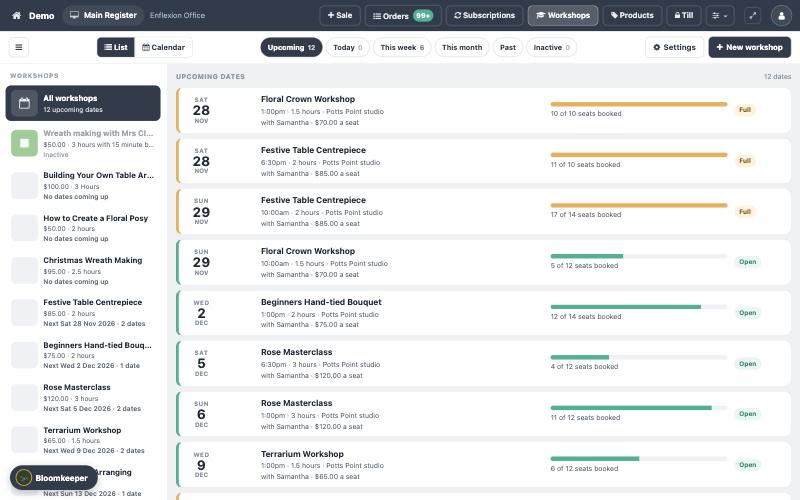
All your workshops and dates in one list, with how many seats are booked on each. Full classes stand out at a glance. Add a new workshop, change the dates or look at who's booked in.
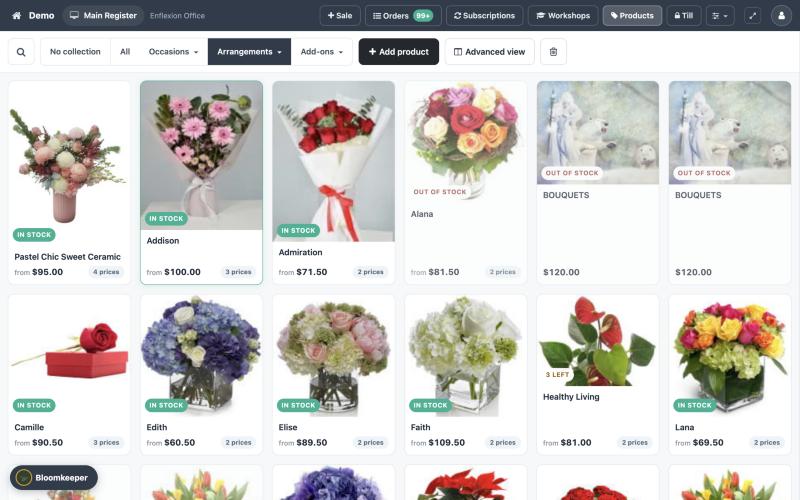
Your products as picture tiles, by category. See prices and stock at a glance, add a new product, or tap one to edit it. Switch to the Advanced view when you want a list.
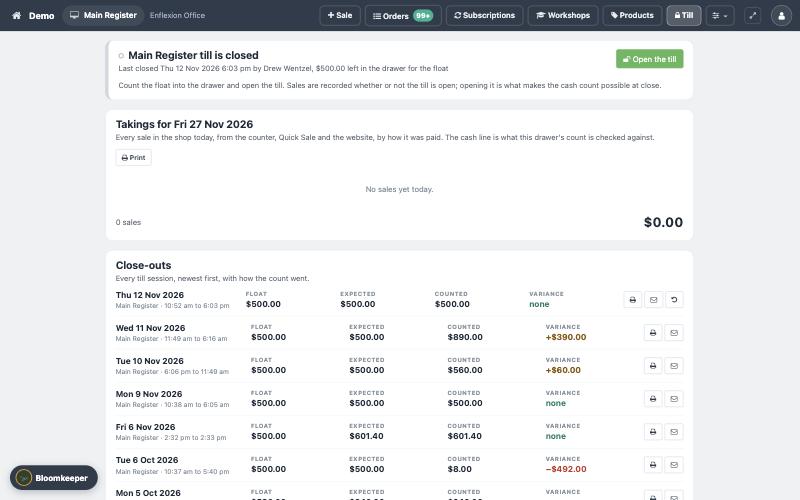
Start the day by counting your float into the drawer and tapping Open. Through the day you can record cash in and out. At close, count the drawer and the system shows you what it expected, what you counted and any difference. Every close-out is kept, so you can look back and print or email any day.
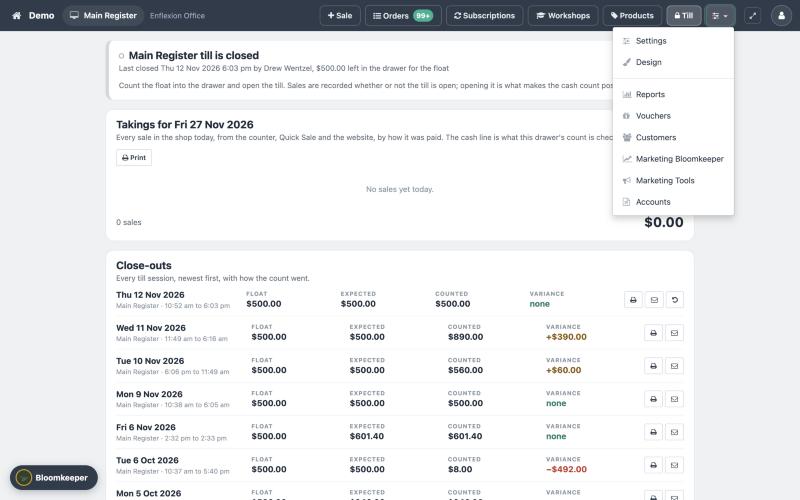
The sliders button opens the back office:
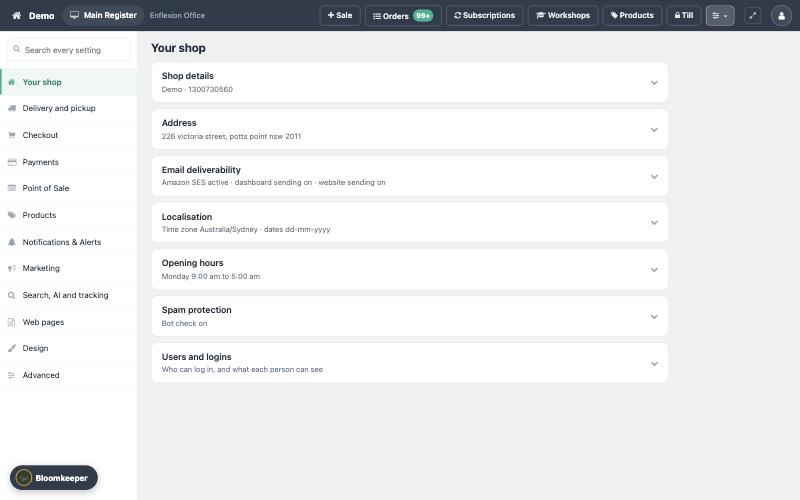
Settings: every setting, with a search box at the top left.
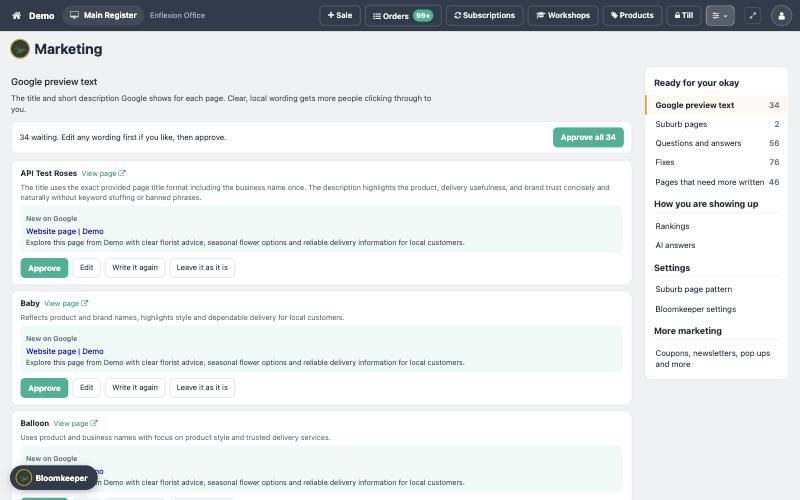
Marketing Bloomkeeper: work for your SEO and AI visibility, ready for your okay.
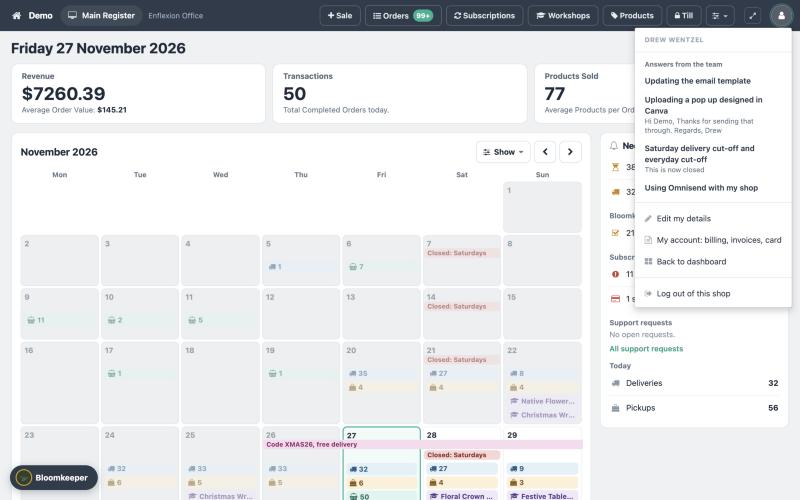
The person button in the top right holds your details, your Flower Store In a Box billing and invoices, and a way back to the old dashboard while you get used to the new one. At the top, under Answers from the team, are the latest replies to your support requests.
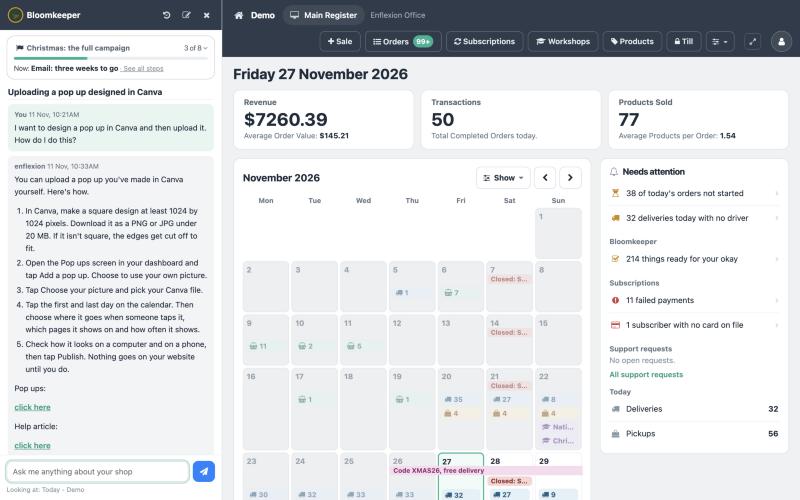
When our team replies to you, it shows up in two places: under Answers from the team in your profile menu, and under Support requests in Needs attention on Today. Tap one and it opens in Bloomkeeper, with the whole conversation.
To ask us something, just ask Bloomkeeper. It'll try to answer first. If it can't, tap Ask the team and Bloomkeeper writes it up for you to check and send. If you already have a request open, your new message is added to it, so everything stays together.
Three numbers across the top tell you how today is going: revenue and your average order value, the number of completed orders, and how many products you've sold. They count everything, from your website and from the Sale screen.
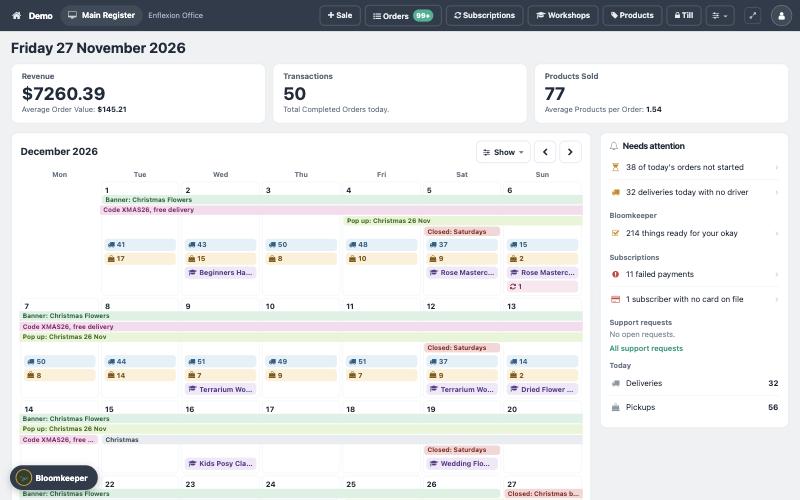
The calendar shows everything that has a date on it, as coloured bars across the days:
So in one look you can see that your Christmas banner and pop up are running, your free delivery code ends on the right day, and you're closed when you mean to be. Tap any bar to go straight to it.
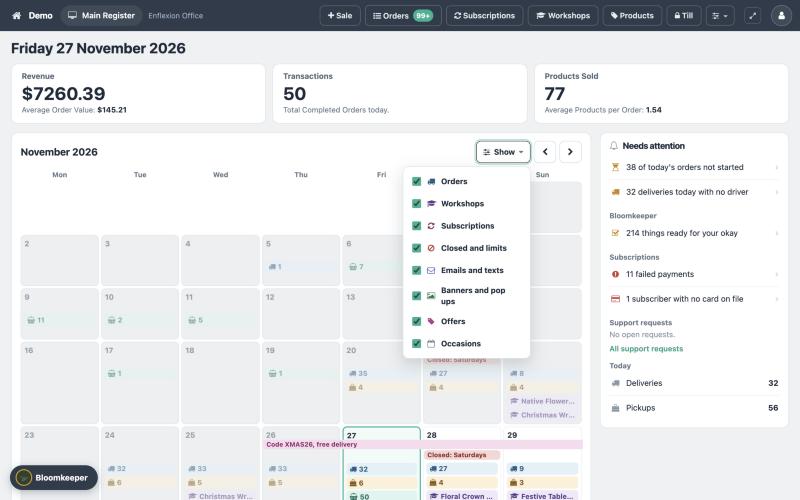
Too busy? Use Show to turn each layer on or off. Your choice is remembered.
The right hand column is your to do list, built for you. It shows:
Tap any line to go straight to those orders or jobs. When it's empty, you're on top of things.
The new dashboard is ready now. To switch it on, open Bloomkeeper and type "turn on the new dashboard", or go to Settings, Advanced Settings, Point of Sale. You can go back to the old dashboard any time from your profile menu.
Questions? Ask Bloomkeeper, or send us a support request from inside the dashboard.

Quick Links
Features